
Google Drive is an incredibly convenient cloud infrastructure for storing personal photographs, business documents, and system backups. However, with Google sharing its 15GB free storage limit across Gmail, Google Photos, and Drive, that space can vanish surprisingly fast. Receiving the dreaded “Storage Full” notification can halt your productivity and disrupt your email flow. How to Clean Google Drive Storage.
While purchasing a premium Google One subscription is always an option, many users can easily reclaim gigabytes of cloud storage simply by finding and removing hidden digital clutter. In this step-by-step tutorial, we will explore quick, safe, and efficient ways to clean up your Google Drive storage without accidentally deleting your important files.
How to Clean Google Drive Storage Quickly Step-by-Step Below
Step 1: Identify What Is Consuming Your Cloud Storage
Before deleting anything, you need to understand exactly where your space is going. Google shares your 15GB bucket across three primary services: Google Drive, Gmail, and Google Photos.
To check your storage breakdown, open your browser and navigate to google.com/settings/storage. Here, you will see a clear visual chart showing which application is occupying the maximum amount of space. Knowing this split helps you target the right area for cleanup.
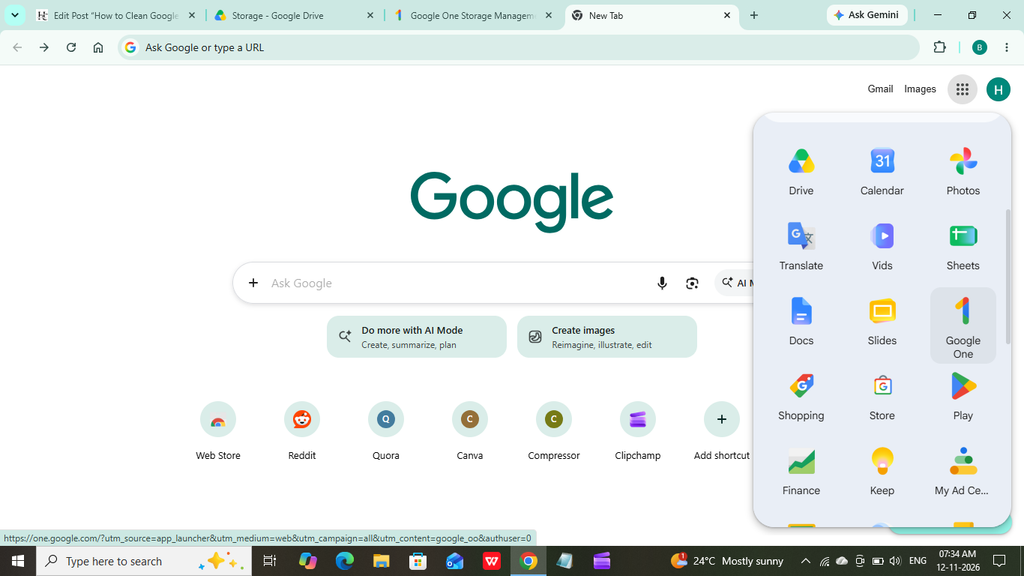
Go to your Google products in the Chrome browser. Choose and click Google One Storage Manager And show your Spilts storage data in the device.
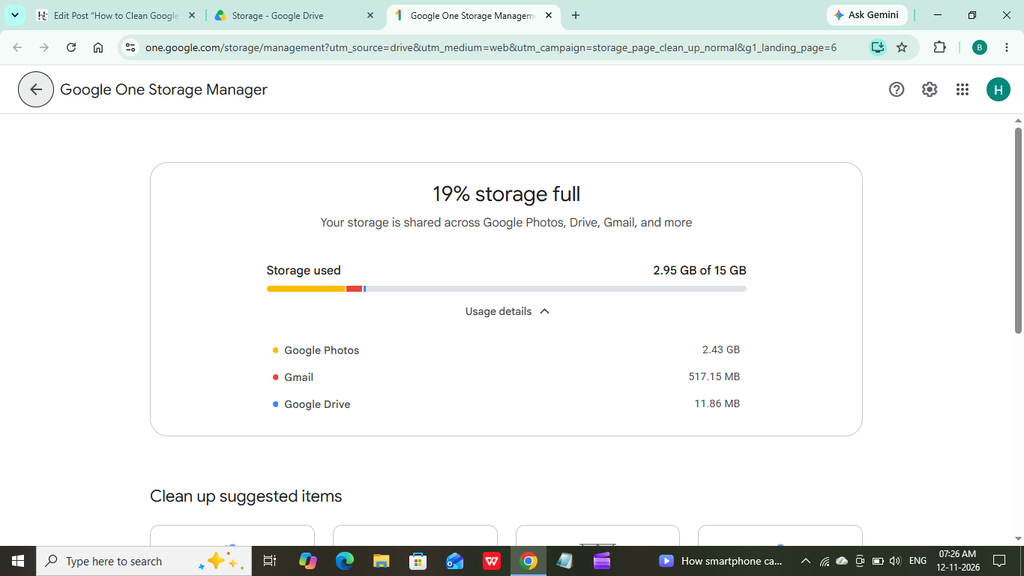
Step 2: Sort and Remove Large Files in Google Drive
Often, a few massive files—like high-definition videos, large zip folders, or outdated software installers—are the main reason your storage is full.
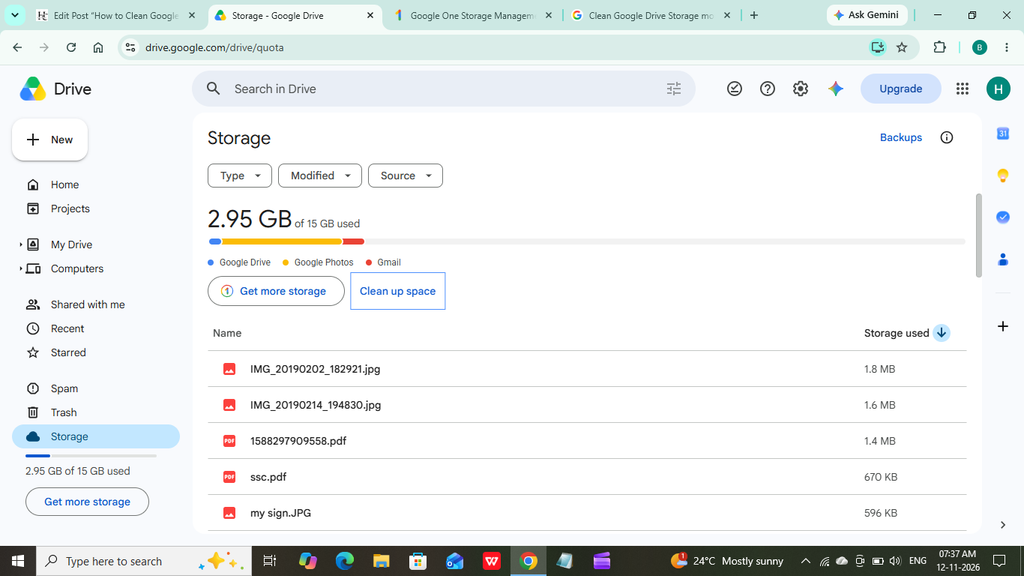
- Open your Google Drive dashboard on your laptop or desktop.
- Look at the left sidebar menu and click directly on the “Storage” tab.
- This action automatically sorts all your files from largest to smallest size.
- Review the top files carefully. If you see old videos or backups that you no longer need, right-click on them and select “Move to trash.”
Step 3: Clear Out Hidden Application Data—How to Clean Google Drive Storage
Many third-party Android apps, mobile emulators, or web tools connect to your Google Drive to store background backups. Even if you uninstall those applications from your device, their hidden data can remain secretly occupied inside your cloud storage.
- Click on the gear icon (Settings) in the top-right corner of your Google Drive interface.
- Select “Settings” from the dropdown menu, then click on “Manage Apps” in the left panel.
- Scroll through the list of connected applications.
- For apps you no longer use, click on the “Options” button next to them and select “Delete hidden app data.”
Step 4: Purge Large and Unwanted Emails in Gmail
If your storage split shows that Gmail is consuming massive space, it is usually because of old emails containing heavy attachments.
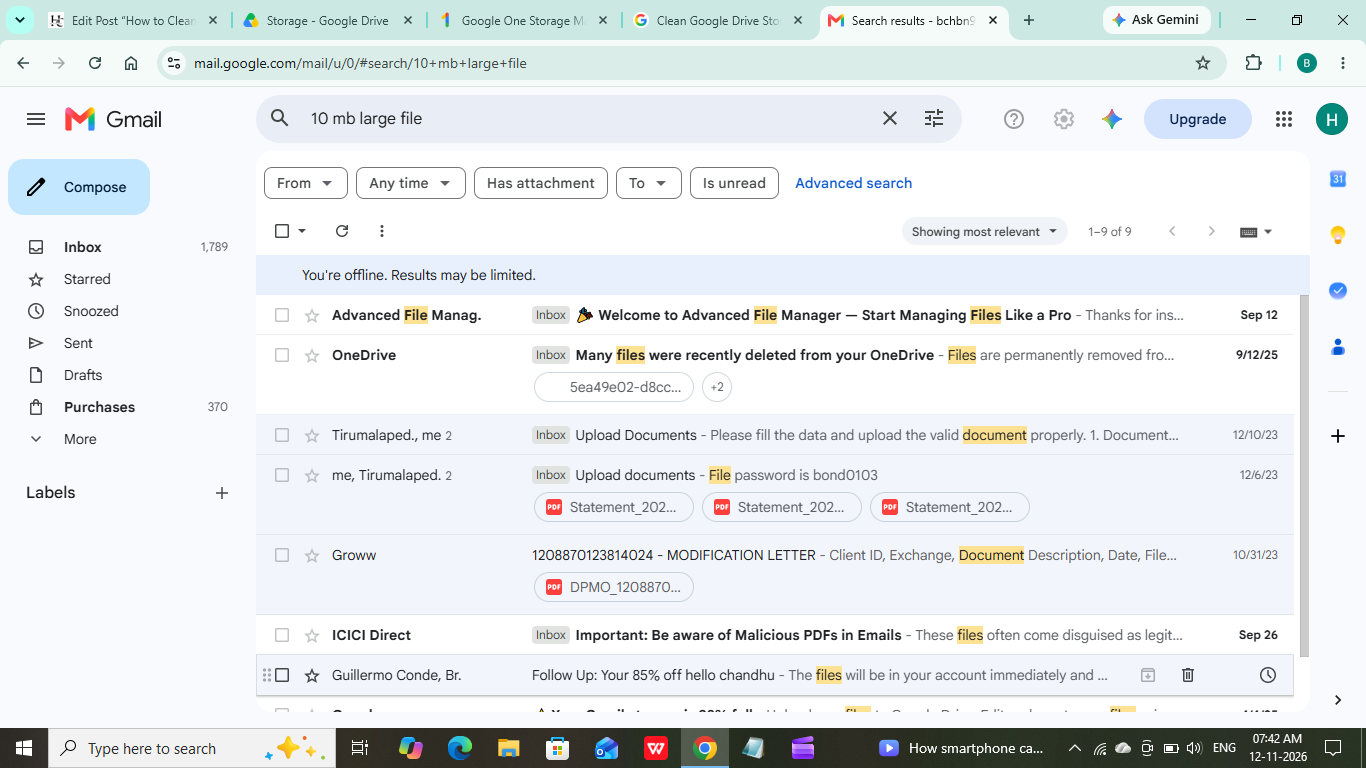
- Open your Gmail search bar at the top of the screen.
- Type the following search: operator exactly: has: attachment larger: 10M
- Press Enter. This will instantly filter out all emails that have attachments larger than 10 megabytes.
- Check the boxes next to old newsletters, bulk files, or outdated updates that are no longer useful and click the delete button.
Step 5: Empty the Trash Bin Permanently
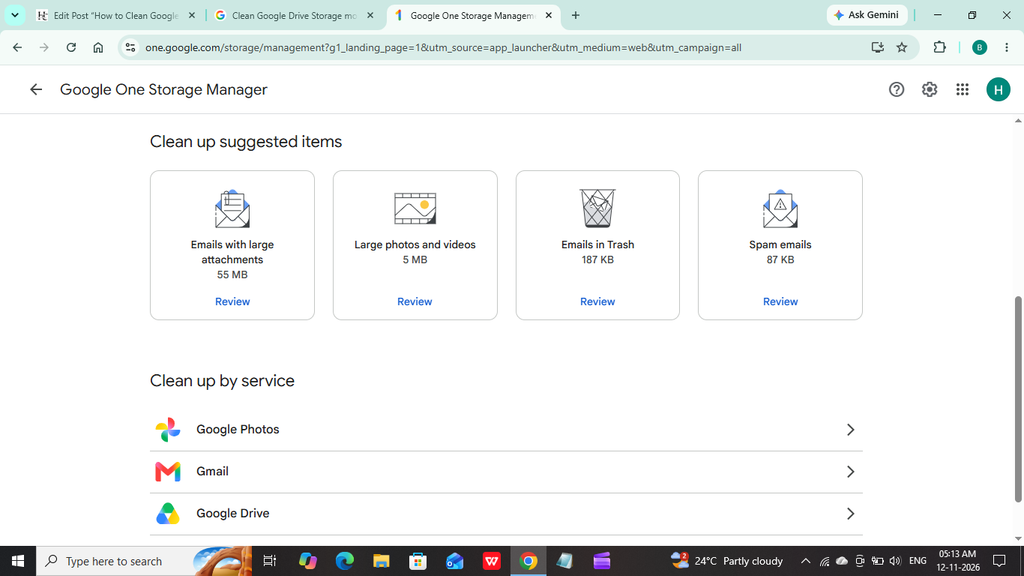
This is the most critical step that many beginner bloggers and users overlook. When you delete files or emails, they are not completely gone; they are simply moved to the Trash bin, where they continue to occupy your 15GB cloud space.
To reclaim your storage instantly, navigate to the “Trash” folder in the left sidebar of Google Drive, click on “Empty Trash” at the top right, and confirm the action. Your cloud storage will refresh immediately. If you want more related articles.
Conclusion: Clean Google Drive storage and reclaim
If you follow the above steps, then clean the Google storage and maintain the provided space. If you require more storage in a professional manner, like YouTube videos, Google provides a subscription plan for large office file storage.
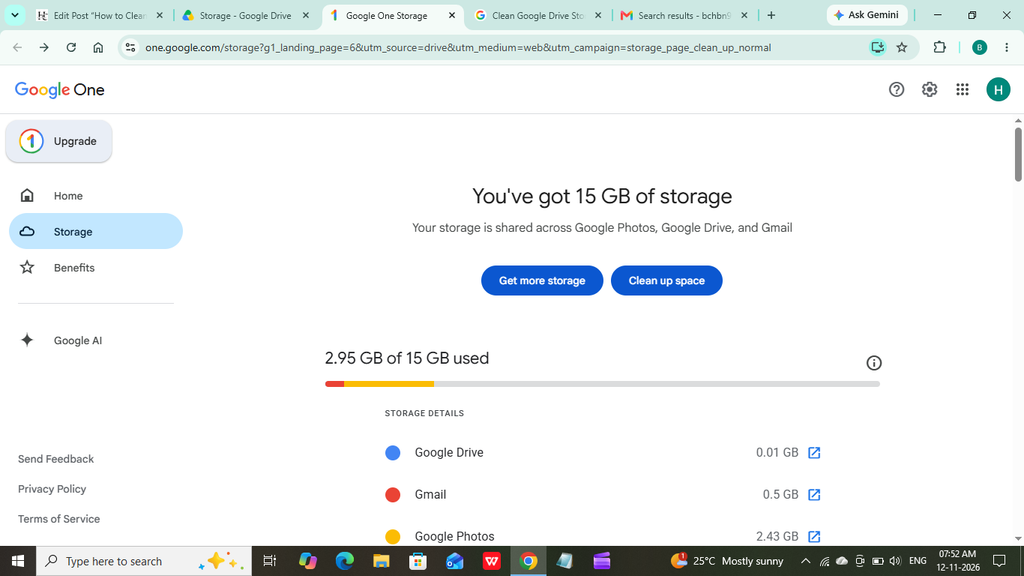
Likewise, you go to the “get more storage” option, click, and purchase a subscription. To read more articles for below. Also, you will try it.
